Great news! With the Calaméo Library Widget, you can create a sleek, fully integrated digital library on your website in just a few clicks.
In this article, discover our video tutorial “How to Create your Calaméo Library Widget” — a simple and comprehensive guide to help you set up your publication space on your site.
Why create a Calaméothèque?
The Calaméo Library Widget is a powerful tool for organizing, presenting, and showcasing your online publications. Whether you manage a collection of magazines, a set of reports, or various brochures, it allows you to offer your audience clear, professional, and immersive access to your content.
The concrete benefits:
Centralize all your publications: Group your documents in one place to offer a smooth and consistent reading experience.
Make access easier for your audience: No more sharing links one by one: your Calaméo Library becomes the single entry point to all your content.
Enhance your brand image: The Calaméo Library integrates directly into your website, giving your publications an elegant and professional presentation.
Save time managing your content: Add, remove, or update your publications in just seconds — without touching your website.
A step-by-step video tutorial
Creating a Calaméo Library is both quick and customizable. Our video tutorial “How to Create your Calaméo Library Widget” walks you through each step:
accessing the feature from your Calaméo account,
selecting the publications you want to display,
customizing the look and feel of your library,
embedding the code on your website in just a few seconds.
(Subtitles are available in 7 languages.)
Conclusion
The Calaméo Library Widget is a simple, efficient, and professional way to showcase your publications directly on your website. Whether you’re a business, an association, an institution, or a content creator, this feature helps you offer your audience a clear, enjoyable, and beautifully integrated reading experience!
2023 has been a great year for Calaméo. Not only have we offered you improved account security and the ability to export your statistics in CSV format, thanks to new features introduced this year, but it’s also time to announce the arrival of a major new feature that will change the way you use Calaméo: integrations.
Easy-to-use integrations
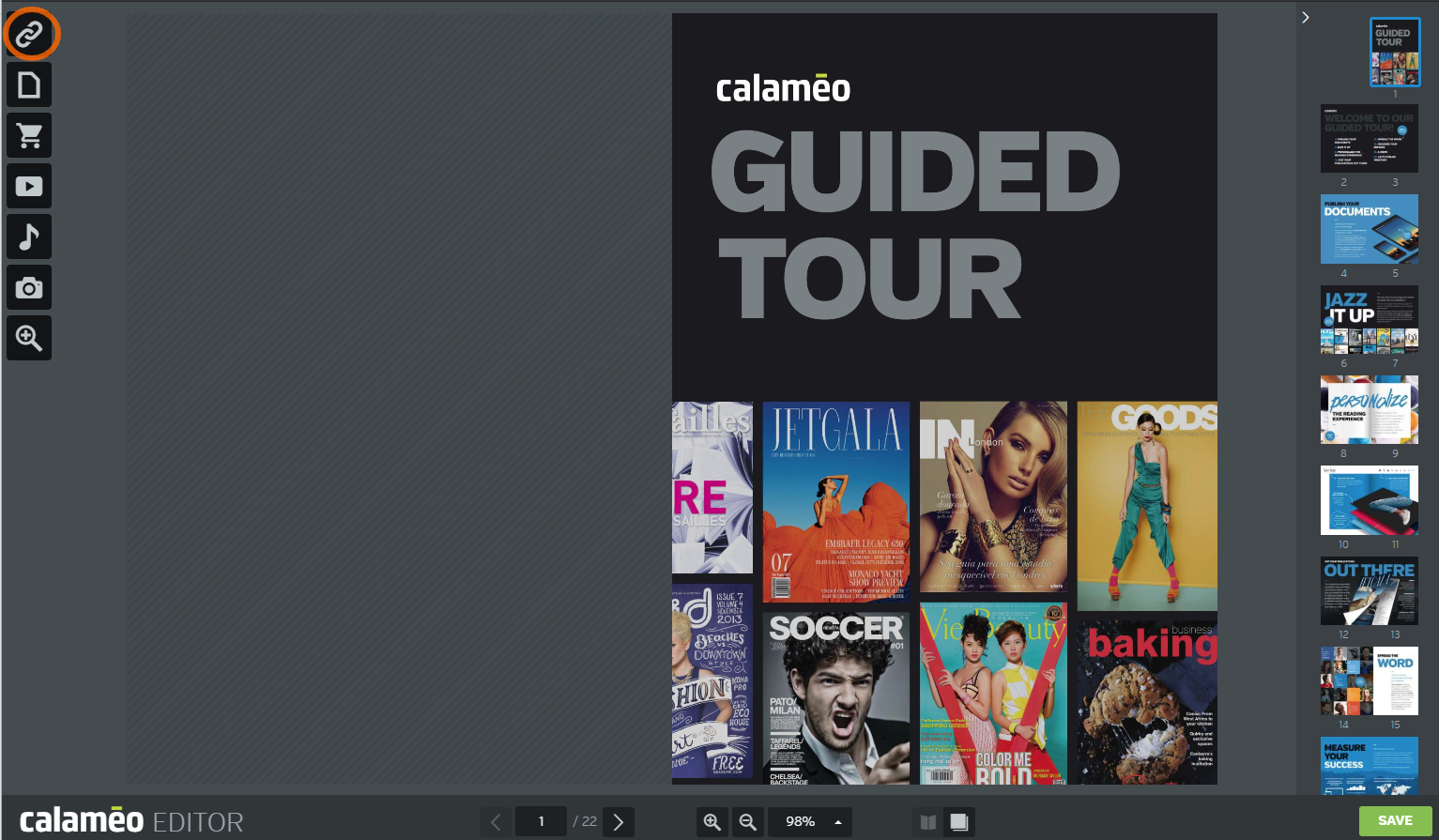
Link your favorite applications to your Calaméo account to unlock brand-new features: with integrations, you’ll be able to add many new elements to your Calaméo publications, in the same way you used to add links, to make your content more interactive.
However, the difference with our EDITOR‘s initial options, such as links, is that the integration elements come directly from the applications you’ve linked to your Calaméo account, such as Calendly, Shopify(coming soon) or Embed.ly for example. And all in just a few clicks!
The reason we’re so excited to bring you this new feature is that we know it will enable you to use Calaméo in many new ways, and that it will not only enhance your experience, but that of your readers too.
Generate qualified leads with your Calaméo publications
Integrations are a powerful marketing tool that will enable you to achieve your objectives with ease (lead capture in particular).
capture qualified leads directly from your publication using Mailchimp, Jotform or Google Forms forms
use a trigger to display a mandatory Hubspot or Typeform form when your publication is downloaded to collect information from your readers, with the aim of capturing leads,
display a Calendly appointment calendar to make it easier to book appointments,
integrate products from your Shopify store directly into your publication (coming soon),
and much more!
💡 Learn more about each of the integrations right here.
On the other hand, integrations give you the option of using triggers.
Triggers automatically activate a specific action at a chosen moment. They are added, like a layer, above your publication. On Calaméo, you can choose between three key moments to trigger an action:
when the publication is opened,
downloading,
or when the publication is printed.
These moments are crucial for capturing your audience’s attention and maximizing the impact of your content.
What’s more, you can choose how this trigger element is displayed on screen:
once only,
until the reader completes the action,
or always displayed.
Note that in addition to lead capture triggers, you could, for example, embed a YouTube video as a trigger, with the aim of promoting your products or services, educating or engaging your audience.
Thanks to the new integrations, it will be easier than ever to link your Calaméo and Google Analytics or Matomo accounts, so you can track the performance of your Calaméo publications directly where all your other statistics are already. All the more reason to simplify your reporting!
🔎 Please note:If you have linked your Google Analytics 4 account to your Calaméo account before the integrations, good news, you won’t have to do a thing. Your accounts will be linked automatically via the integration, and there will be no loss of statistics!
Add even more interactive elements
Thanks to the wide range of integrations we offer (and will be offering in the future), you’ll be able to insert a multitude of new rich media into your publications, for an ever more unique and dynamic reading experience.
💡 Find the list of integrations we offer and their possible uses right here.
Conclusion
Integrations are going to revolutionize the way you use Calaméo. We can’t wait to see what you, our extraordinary users, will create with all these new possibilities open to you!
💡Integrations are a new feature reserved for PLATINUM accounts.
When you’ve worked hard on creating a great publication, having more choices is always a good thing. That’s why we’re so pleased to announce that there is now a new option for including video in your digital publications on Calaméo!
From now on, you will be able to embed video elements that play directly on the page of your publication without opening a pop-up overlay. Your readers can move seamlessly from browsing an article to watching a video clip and back again.
All you need to do is open your publication in the Calaméo Editor, go to the page you want to modify and select the video icon.
Adjust the blue zone so that it appears where you wish the video to play and add the video URL and text label in the video properties window. Then, choose “Embedded” from the Display mode drop-down menu.
You can also choose whether you would like to display the video thumbnail, begin playing the video automatically when the reader turns to this page and mute any background music while the video plays.
💡 TIP: Want embedded videos to play with sound? Don’t opt for autoplay. By default, your readers must click for sound on videos that start playing automatically.
Save your work and view your publication to see the video embedded right on the page!
Of course, you’ll still be able to choose the classic pop-up player for your videos. Just select “Pop-up” from the Display mode options when adding video to your publication in the Calaméo Editor.
Looking to get a handle on your video strategy? Check out our guide to promoting content on YouTube. Then visit our YouTube channel to watch tutorials on using our Editor and more.