
There’s a big change happening on Calaméo in 2021. That’s right—our new and improved “2021” viewer theme has launched. Find out everything you need to know about the “2021” theme!
What is the “2021” theme?
The “2021” theme is a new viewer interface for your publications on Calaméo. It should look familiar: we’ve based “2021” on the classic “Default” option. But the new theme offers you lots of improvements. First and foremost, our tech team has rebuilt the viewer for maximum comfort, usability and efficiency. You’ll notice that browsing is smoother, close reading is easier and—of course—that your publications look great.
What’s new?
Here are just a few of the updates you’ll enjoy in the “2021” theme:
More space for your documents in the viewer
Publisher’s choice of Book, Slide or Scroll mode
Improved navigation tools
Helpful Index mode to access thumbnails at a glance
Larger, streamlined buttons and icons
Intuitive zoom controls
New “Made with Calaméo” viewer watermark
Cohesive mobile experience
We think you’ll find “2021” simple to use, with the great features you’re used to like in-text search, custom logos and direct downloads. Check out an example below to see the new theme in action!
Can I still use the classic Calaméo themes?
If you are a PREMIUM or PLATINUM user, you can continue to use the classic Calaméo themes with your publications. To select a theme, go to the Design tab of your publication’s properties. Next, choose the theme you wish to use from the drop-down menu. Finally, click the green “PUBLISH” button to save your selection.
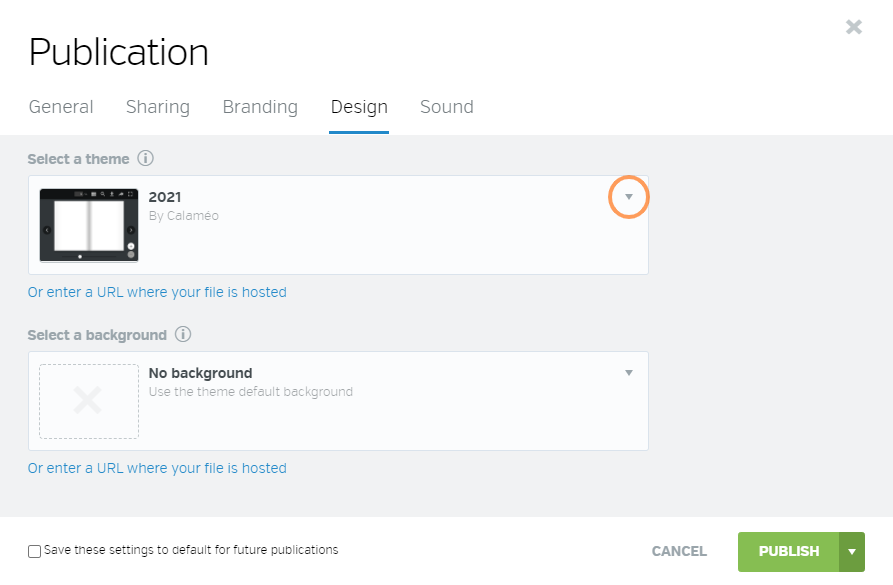
BASIC users do not have access to the classic Calaméo themes. However, BASIC users are free to define Book, Slide or Scroll mode for their publications in the “2021” theme.
What about changing the background?
Changing the viewer background is a feature exclusive to our PREMIUM and PLATINUM plans. As a result, BASIC users may not modify the background color or image in the “2021” theme.
PREMIUM and PLATINUM users should see no disruption to their existing publications and customization elements. You can make use of your custom logos, backgrounds and viewer themes as usual! For those planning to choose “2021” for upcoming publications, it’s important to be aware that your logo will be automatically resized in this theme. Therefore, we recommend using a horizontal version of your logo, in .PNG format with a transparent background.
Please note that BASIC users will no longer be able to display custom backgrounds for their publications.
What else do I need to know?
We’re delighted to be bringing the “2021” theme to all of our users and we hope that you find it modern, practical and fun. While you’re getting to know the new theme, please let us know if you have any questions or concerns! You can write to us at contact@calameo.com or visit our Help Center to submit a request. Plus, stay tuned for details about more changes coming to viewer themes right here on Calaméo.
In the digital age, virtual libraries have become essential tools for organizing, sharing and accessing online resources. Thanks to technological advances and new solutions such as the Library Widget from Calaméo, it’s easier than ever to create a virtual library that meets users’ modern needs. In this article, we’ll explore the key steps to creating your own virtual library and show you how to make the most of the tools available.
A virtual library is an organized collection of digital documents, accessible online. Unlike ordinary libraries, virtual libraries offer unlimited accessibility, simplified content management and the ability to adapt to the needs of their users.
Here’s an example of a virtual library created with Calaméo:
Why you should create a virtual library: the major advantages
Optimized visual display
One of the greatest advantages of creating a virtual library is the simple, interactive way of showcasing your publications. Whether you want to display every issue of your magazine or a varied collection of documents, the virtual library enhances the visual impact of your content. Thanks to intuitive navigation, visitors can easily browse your virtual shelves and click on a cover to open the publication in full screen or in a new window. They can then easily return to your virtual library once they’ve finished reading.
Automatic updates
Automatic updates make it easy to manage your virtual library. Every time you add a new publication to your Library Folder on Calaméo, it instantly appears on your virtual shelves. By choosing to create a virtual library, you’re freed from repetitive manual management tasks. Removing publications is just as easy: mark them as private or move them to another Folder to adjust their accessibility with a few clicks.
In-depth analytics
When you create a virtual library, you also benefit from detailed analytics on how your audience interacts with your publications. You can track views, link clicks, downloads and traffic origin. These analyses enable you to adapt your content to better meet your audience’s expectations and improve engagement with your virtual library.
Why choose Calaméo to create your virtual library?
To create an effective virtual library, it’s essential to choose a platform tailored to your needs. Several solutions are available on the market, but the Library Widget from Calaméo stands out for its ease of use, intuitive interface and numerous advanced features. This solution is ideal for those who want to create a virtual library quickly and without any particular technical skills.
By using this feature, you benefit from :
Easy embeding on your website: Calaméo enables effortless embeding of your virtual library on your website, which means you can showcase your digital resources in a harmonious, professional way.
Visual customization to match your brand: Thanks to a variety of customization options, you can adapt the appearance of your library to reflect your brand identity and blend seamlessly into the pages of your website.
Numerous options for sharing and distributing your publications: With Calaméo, you can easily share your publications on social networks or by e-mail. This enables you to reach a wider audience and increase the visibility of your resources.
Step 1: Publish and organize your documents on Calaméo
Organizing your documents is a key step in ensuring an optimal user experience and smooth navigation in your virtual library. To ensure that your publications are easily accessible and well structured, it’s important to prepare them well before publishing them on Calaméo.
Start by publishing your digital documents on Calaméo. Each publication should be accompanied by a catchy, descriptive title, incorporating relevant keywords linked to your content. Don’t forget to fill in the description of each publication with clear, engaging summaries that will encourage users to discover your content.
Next, organize your publications by placing them in Folders or adding them to a Favorites list. For these documents to be visible in your virtual library, it is essential that Folders and publications are defined as public.
NOTE: Private publications will not be displayed in the Library Widget, giving you total control over what is visible to your users.
All you have to do is select the Folder (or favorites list) whose contents you wish to display in your virtual library. All public publications in this folder will automatically appear in your library, making it easy to manage your documents without any extra effort.
Step 2: Customize the appearance of your Library Widget
Personalizing your virtual library is essential to ensuring a user experience that reflects your brand identity. Thanks to the many customization options offered by the Calaméo Library Widget, you can adjust the appearance of your library so that it blends seamlessly with your website while reinforcing your brand image.
You can adjust the following elements of your Library Widget:
The texture or background color of the library to match the style of your website.
The number of shelves to display to visually organize your publications.
The size of your publication thumbnails for optimized display.
The information to be displayed for each publication (such as title or description).
The order in which your publications appear, allowing you to highlight certain strategic documents.
The way publications open (in a new window or full screen).
You can also adjust the appearance of thumbnails by choosing, for example, a shadow or other visual effects that enhance the impact of your publications. These subtle details play a key role in enhancing the aesthetics and navigation of your virtual library.
TIP: While you’re customizing the look and feel of your Calaméo Library Widget, you can see the changes in real time thanks to the preview function. This allows you to test different configurations and ensure that each modification fits perfectly into your overall site before finalizing the upload.
By customizing your virtual library with these options, you offer your users a fluid, visually appealing experience, while reinforcing your brand identity at every stage.
Step 3: Embed the Calaméo Library Widget into your website
Once you’ve carefully customized the look and feel of your virtual library, the next step is to embed it directly into your website. This step is crucial to making your virtual library accessible to your users and enabling smooth navigation between your content and the other pages of your site.
Embeding the Calaméo Library Widget is quick and easy, and you have several options for doing so. Once you’re happy with the configuration and design of your virtual library, simply copy the embed code provided by Calaméo. This code can be inserted on any page of your website, whether on a page dedicated to your publications or another section of your site.
This intuitive process makes it easy to present your digital document collections in a professional, interactive way.
READ MORE: If you need help with embedding, resources such as the tutorial or the support pagein the Calaméo Help Center are available to guide you step by step.
By embedding a Calaméo library on your site, you enable your visitors to easily explore your digital publications directly from your platform, without having to navigate to another site. This not only enhances the user experience, but also reinforces the consistency of your brand image by providing seamless access to your documents in a controlled environment.
Embeding requires no advanced technical skills and, once the code has been inserted, your virtual library will be automatically updated every time you publish new documents or modify existing ones. So you don’t have to worry about manually keeping your library up to date, which saves you and your team valuable time.
With just a few clicks, you can create a dynamic, scalable virtual library that blends seamlessly with your website, while enriching your users’ experience and facilitating access to your digital content.
Conclusion
Creating a virtual library represents a unique opportunity to modernize your content management and improve access to your digital resources. With the Calaméo Library Widget, you have a powerful and flexible tool at your disposal to set up a virtual library perfectly adapted to your needs.
Don’t wait any longer, transform the way you share information by starting to build your virtual library with Calaméo today!
In today’s world, where projects multiply and teams collaborate remotely, managing digital publications can quickly become a challenge. Between coordinating workflows, ensuring secure access, and tracking your content strategy, it’s easy to lose both time and efficiency.
That’s where Calaméo’s Multi-Account feature comes in, available to our PLATINUM users. Designed for teams and complex organizations, this functionality lets you centralize, organize, and delegate the management of your Calaméo publications effortlessly.
Centralized management for greater clarity
Say goodbye to scattered login credentials: with Multi-Accounts, you can consolidate multiple accounts under a single main account, gaining visibility and efficiency.
Individual access
Customizable permissions for each account
Detailed data accessible from one place
The result: your content strategy is clear, centralized, and managed from a single dashboard.
Control or delegate – the choice is yours
Teamwork is all about assigning the right roles. Multi-Accounts allows you to tailor account management to your needs:
Full control: personally manage all associated accounts
Partial control: delegate specific tasks to team members while maintaining overall supervision
This flexibility empowers your team with autonomy while keeping you in charge.
Simplified billing
Another tangible benefit is billing. Depending on your organization, you can:
Invoice your clients or subsidiaries directly
Let Calaméo handle payments
Maintain centralized, traditional billing
This saves valuable time for agencies, franchises, or international groups managing multiple client accounts.
Practical use cases for your teams
Marketing agencies: centralize multiple client publications, delegate tasks to your teams, and maintain control over the overall strategy
Multi-branch organizations: give each branch autonomy while overseeing group-wide communication
Editorial teams: allocate roles to streamline production
Conclusion: Efficiency and peace of mind
With the Multi-Account feature, Calaméo simplifies collaboration and optimizes your publication management. Whether you’re a small team or a complex organization, you gain time, security, and clarity.